

 Canvas LMS
The Canvas LMS is a Learning Management System (LMS) which supports every lectures held in Tohoku University.
Canvas LMS equips various functionalities including browsing digital materials, submitting assignments, and so on.
This page provides a basic instruction of how to get digital materials and to join learning activities.
Canvas LMS is a learning management system to support the lectures held inf Tohoku University through the Internet. Canvas LMS provides the dedicatd webpage for each lecture. You can access digital materials of the lecture such as handouts and slides, and can join learning activites such assignments and quizzes through the webpage.
Every student, including undergraduate and graduate students, and every teacher and staff can use the Canvas LMS service without special registration procedure.
Visit the Canvas LMS login page on your webbrowser, and login with your DC Mail and DC Mail password.
Here is an instruction of how to login to Canvas LMS.
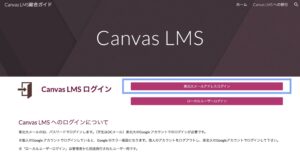
If you are logged into Google, select the Canvas LMS icon from your app list.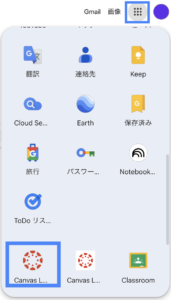
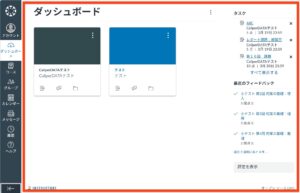
After you login, the “Dashboad”, the screenshot below, is displayed. The dashboard screen will display the courses you have registered for in the Student Affairs Information System (only courses using Canvas LMS).
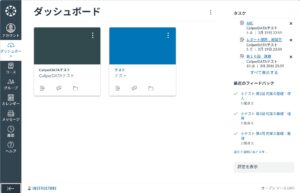
View Global Navigation Menu
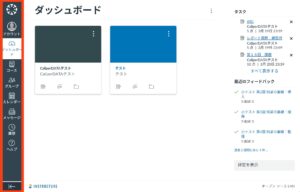
●View Account
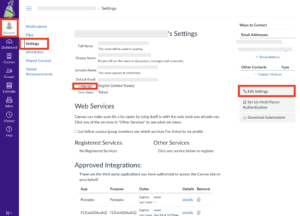
To view your user information, click the Account link. A menu tray expands and displays links to access your user settings, notification settings, and personal files.
※You can change the display language. In Global Navigation, click the Account link, then click the Settings link. Click the Edit Settings button.
●View Dashboard
The Dashboard is the landing page after you log in to Canvas. You may be able to view the Dashboard in a course view, list view, or recent activity view.
●View Courses
To view your courses, click the “Courses” link. The “Courses” menu displays a list of your “favorite” courses, or, if you haven’t selected any “favorite” courses, the menu displays current courses where you are enrolled. To customize your courses list or view all your Canvas courses, click the “All Courses” link.
●View Calendar
Various events, such as test dates and assignment deadlines, are displayed in a calendar format. Up to the 10 most recent events are displayed.
●View Inbox
You can view the message send and receive history. You can compose and reply to messages.
You can view the operation and browsing history for Canvas LMS.
You can view the Tohoku University Canvas LMS guide.
View Dashboard
Depending on the class you are taking, you may receive an invitation email like the one shown in the figure below. In this case, clicking “Start” will cause the class to appear on the dashboard. 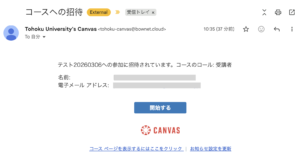
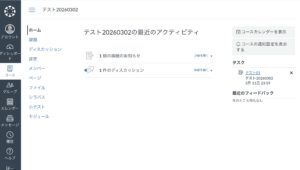
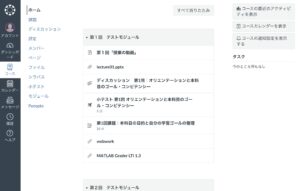
The screen where announcements and course materials are displayed for each class or course is called “Course Home.”
Click the course name in the list of subjects/courses on the dashboard.
The course home page is displayed.
Materials will be distributed during the general lecture as needed.
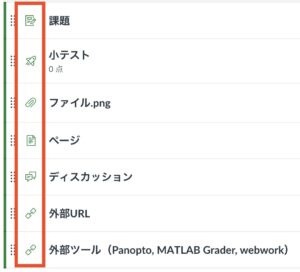
Click the relevant assignment from the course home screen.
After reviewing the relevant assignment, click “Submit Assignment.”

Once you have completed the preparations appropriate for the submission type, click “Submit in this state” to upload the assignment.
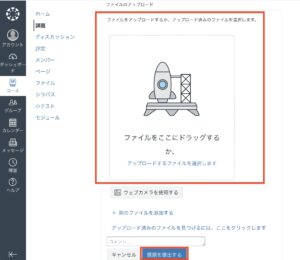
Depending on the instructor’s settings, the assignment submission screen may require an online text entry, a file upload, or both.
The assignment has been submitted.
If you wish to submit a different answer or revise a submitted assignment (provided resubmission is permitted), click “New attempt.”
The file upload is complete once this screen appears, and the teacher can also view it.
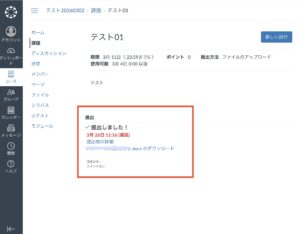
If the “New Attempt” button is not available, you cannot re-edit or resubmit the assignment.
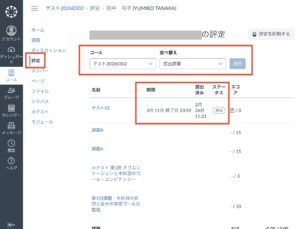
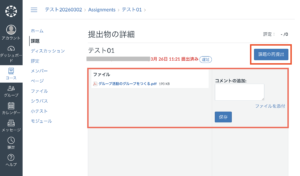
If the “Resubmit Assignment” button is not displayed, re-editing or resubmitting the assignment is not permitted, and you cannot re-edit or resubmit it.
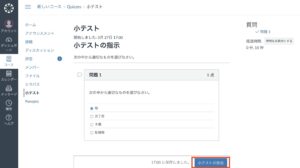
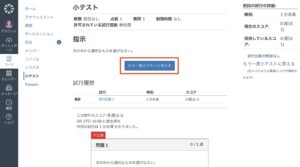
Click the title of the quiz you want to submit from the course home screen.
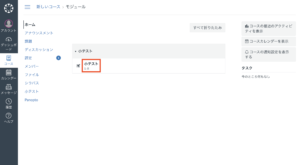
Click “Resume quiz”
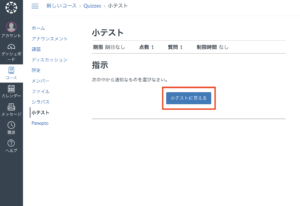
There are various question formats, including written-response questions, essay questions, and multiple-choice questions. Sometimes, a short quiz spanning several pages that combines these different formats is administered.
Please disable your browser’s ad-blocking function when watching videos on Panopto. If it is enabled, your viewing history may not be recorded correctly.
Click the “↗︎” (“Panoptoで視聴”) icon at the bottom right of the video.
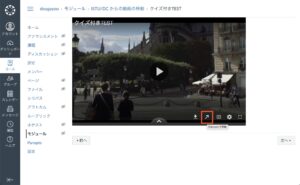
On the Panopto viewing screen, click “Tohoku University” in the top-left corner. (This selects “すべて All”.)
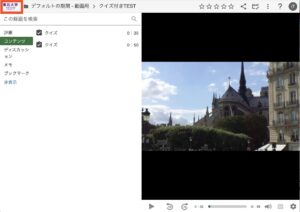
Click the “統計 statistics” icon in the top-right corner of the “すべて All” screen.
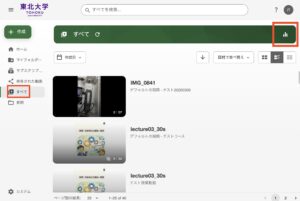
Select “視聴されたセッションのデータ Data on viewed sessions”

If the “完了率 completion rate” for the video you want to check is 100, it means you have watched the entire video.

Based on the Declaration on the Utilization of Education and Learning Data(https://www.tohoku.ac.jp/japanese/studentinfo/education/08/education0801/), this university collects data regarding the usage history of specific Canvas LMS functions by students, faculty, and staff; this data is used to support education and learning, as well as for research aimed at improving the system’s functionality.
For instructions on how to use Canvas LMS, you can access various manuals and tutorials via the Help section located at the bottom left of each screen. If you are unable to resolve an issue, please contact us at the following address.
